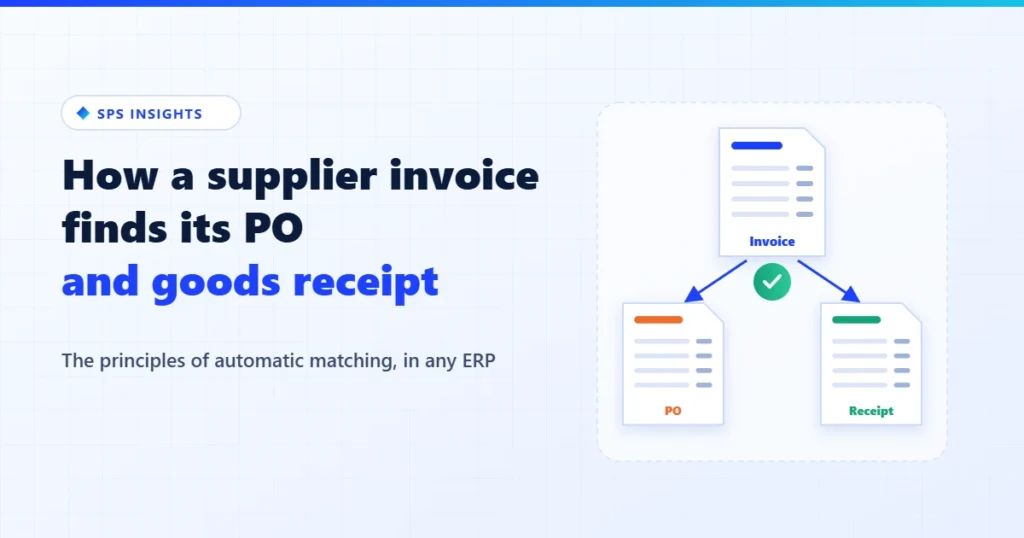
Reading a supplier invoice is close to a solved problem. The hard question starts after the read: which purchase order does it belong to, which goods receipt does it close, and what happens when the supplier wrote half a PO number, billed two shipments on one invoice, or rounded the discount differently than you did? This article breaks automatic matching down into its principles – the same principles in any ERP – and explains why the difference between a “keying assistant” and real automation decides how much work you are left with.
When a company says “we have OCR for invoices”, it usually means the data from the page reaches a computer. But between “the data arrived” and “the invoice is posted, matched to the PO and the receipt, and closed” there is a whole layer of logic – and that is where most of the manual work in accounts payable still lives. That layer is not about reading. It is about matching.
1. First: make sure the invoice adds up
Before looking for a purchase order, make sure the invoice is consistent with itself. These simple arithmetic checks catch two problems at once: reading errors (an 8 read as a 3, a lost decimal point) and the supplier’s own mistakes. Better to catch them now than after they have been “matched” to the wrong line.
- Every line on its own: quantity × unit price, minus the line discount, should equal the line amount. A line that doesn’t add up is almost always a misread field – and the system knows exactly which line to flag.
- Lines vs. the header: the sum of all lines should match the pre-tax subtotal at the bottom of the invoice.
- The header chain: amount before discount, minus the invoice-level discount, equals the net amount; plus tax and any other charges, equals the total due. Every link in the chain is a check.
- Rounding tolerance: suppliers round per line or per document, so every comparison needs a small allowed difference (for example up to 1.00 in the invoice currency). Without it, correct invoices fail over cents.
An invoice that passes these checks is an invoice whose numbers you can trust. Matching starts here.
2. Translation tables: what the supplier wrote vs. what the ERP knows
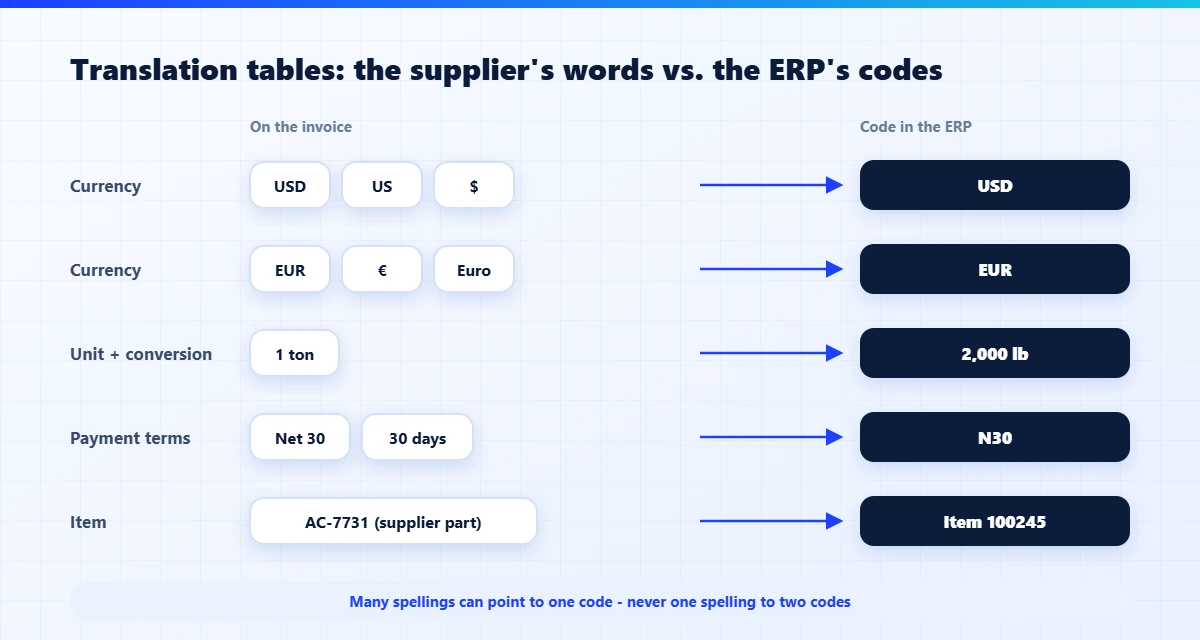
Suppliers write in their own language; the ERP only knows its own codes. That is why every serious matching system keeps translation tables, built once and improved over time:
- Currency: “USD”, “US” and “$” are the same currency; so are “EUR”, “€” and “Euro”. Many spellings can point to one code – but one spelling can never point to two codes.
- Units of measure – translation with conversion: here, translating the name is not enough. If you ordered 2,000 lb and the supplier invoiced “1 ton”, a direct comparison of 1 against 2,000 fails even though the quantity is exactly right. So every pair of units gets a conversion factor, and the system converts both the quantity and the unit price (price per ton vs. price per pound) before comparing. The same goes for a “case” that is 12 units at one supplier and 24 at another. And “PCS”, “EA” and “each” are simply the same unit spelled differently. If the invoice unit differs from the PO unit and no conversion is defined, that is an error – not a guess.
- Payment terms: “Net 30”, “30 days” and “N30” should all land on the same code, and can also be checked against the terms on the vendor record.
- Item numbers: the supplier writes their part number, not yours. Matching goes through a “supplier part number” (or manufacturer part number) table that links the supplier’s number to your internal item. When a user corrects a match, the system can offer to save the link – replacing the old one or adding a new line – so next time it happens on its own.
3. How to find the base documents
The base documents are the purchase order and the goods receipt – the documents the invoice needs to connect to. There are three ways to find them, in order of reliability:
- The supplier’s delivery note (packing slip) number. When goods are received, the receipt records the supplier’s delivery note number. If the same number appears on the invoice, it is the safest way to reach the right receipt – and through it, the PO.
- The PO number – full or partial. Suppliers often print only part of the PO number (“PO 5821” instead of “PO26005821”). One simple rule solves most cases: search by the last X digits, together with the supplier. Restricting the search to the supplier matters even when the number is complete – so you never “catch” another supplier’s PO with the same number.
- No number at all. When the page shows neither a PO nor a delivery note, search the supplier’s open POs and receipts by item, quantity and price – but only within a reasonable time window, so today’s invoice is not matched to a receipt from a year ago.
This is where policy comes in – set globally and overridden per supplier: Is a PO mandatory? Is a final goods receipt required before a line can be billed? What happens when the supplier prints a PO number that doesn’t exist in your system – stop, or continue and flag it? For a goods supplier, “no receipt, no payment” is a sensible rule. For a services supplier, it would block every invoice.
4. Full, partial and multiple matches
This is where most solutions break down – and where most of the manual work is. Three principles make the difference:
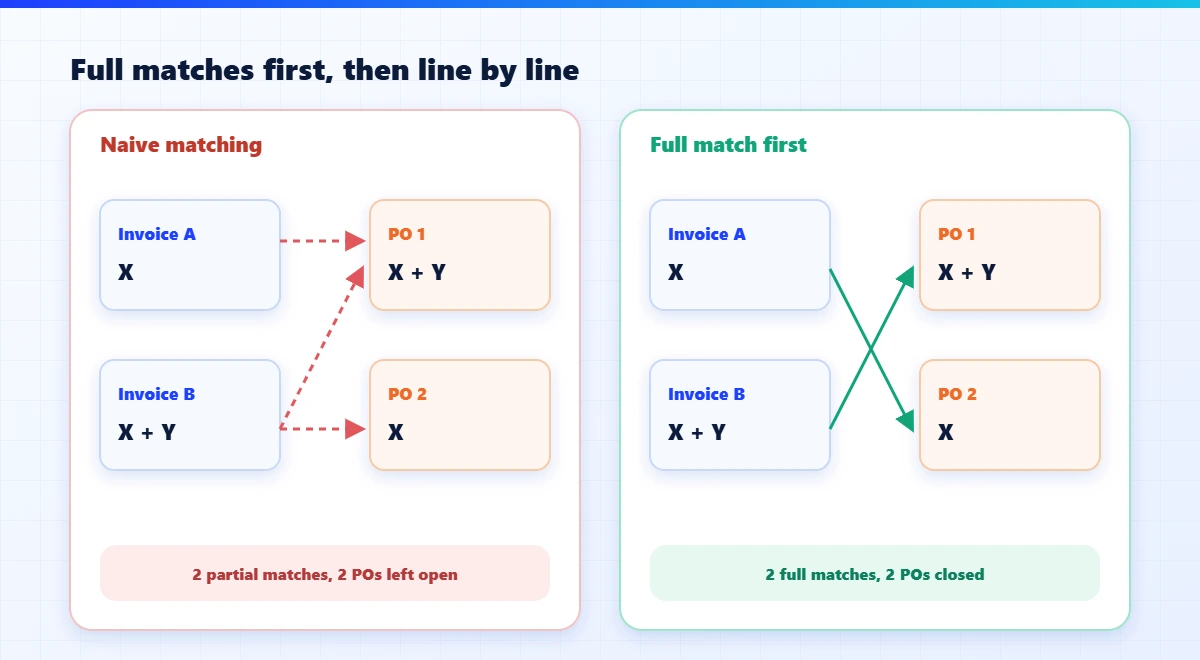
A. Clear the full matches first. Before matching line by line, check whether the whole invoice fully matches an open PO or receipt – even when the supplier didn’t print the number. The reason: “greedy” line-by-line matching creates unnecessary partial matches. An example:
- The system has PO 1 with items X and Y, and PO 2 with item X only.
- A first invoice arrives with X only, followed by a second invoice with X and Y.
- Naive matching attaches the first invoice to the X line of PO 1 – so the second invoice has to be split across both POs: two partial matches, and two POs left partly open.
- Matching that looks for full matches first attaches the first invoice to PO 2 and the second to PO 1: two full matches, and two POs closed.
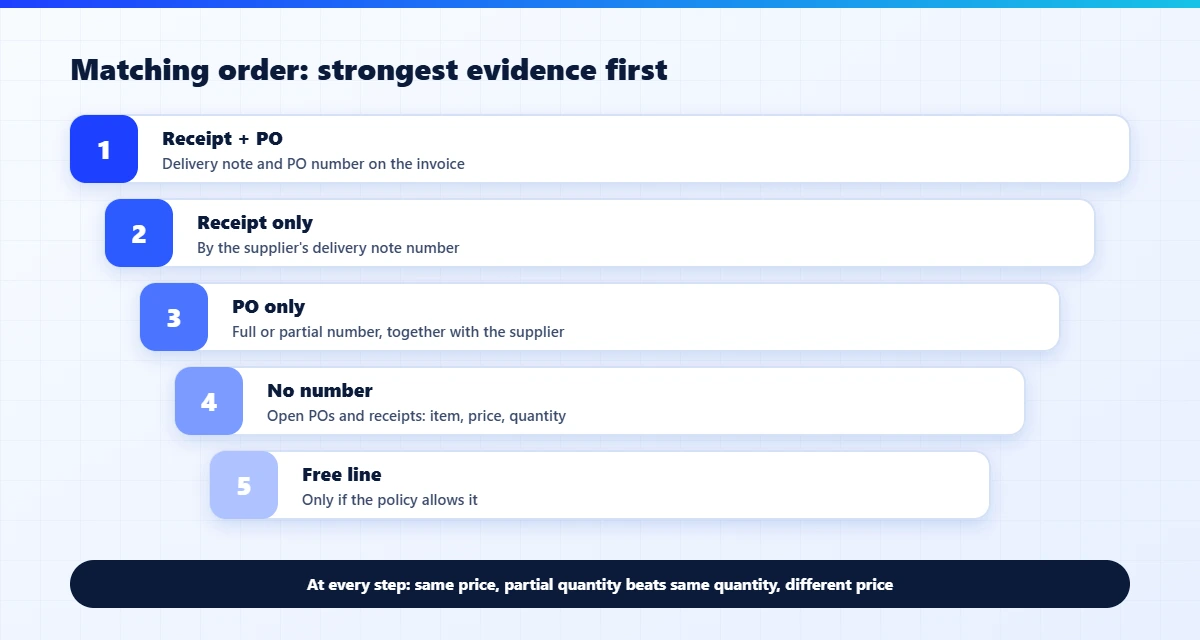
B. Sort the lines by evidence. Lines that carry both a receipt and a PO reference are matched first; then lines with a receipt only; then lines with a PO only; and last, lines with no reference at all. That way the certain matches claim the right base lines before any guessing starts.
C. Price before quantity. When looking for a base line for an invoice line, it is better to close a line with the same price and a partial quantity than a line with the same quantity and a different price. A partial quantity is normal business (a partial shipment, an open balance). A different price is usually a problem someone should see.
Multiple matches are the opposite case: one invoice that covers several shipments. If the supplier listed the delivery note numbers on the invoice, the system can collect them from the header and the lines, remove duplicates, pull all the lines of those open receipts – and build the invoice from them. The other direction exists too: one PO billed across several invoices, each closing part of the quantity, with the balance left open for the next one.
5. Tolerance against the base documents, and discounts
If matching demands equality to the cent, almost no invoice will pass. Suppliers round differently, apply discounts at the invoice level instead of the line level, and add a few cents. So you also define tolerances for the comparison with the base documents:
- Per line: the invoice line price vs. the base document – as an amount and as a percentage.
- Discounts: when the supplier gave an overall discount, the system can calculate the actual discount instead of trusting the printed percentage. For example: 12 units at 4.38 are 52.56, and the supplier billed 47.40 before tax. The actual discount is 9.82%, and the system can post it that way so the total comes out exactly as the supplier’s.
And there is a policy question: what if the invoice is cheaper than the base document? Some companies approve a lower price automatically; others want to see every difference, in either direction.
6. Invoices without lines
Utilities, professional fees, a monthly service – many invoices are just a header and an amount. No items, no goods receipt. They have three routes, and the choice is best set per supplier:
- A journal entry to the supplier’s default expense account (one per invoice, or one per import batch).
- An invoice with a default item (“Services”, “Freight”) and a single line for the invoice amount.
- Against a PO: if a PO number is present, check that the amount matches the PO and pull the lines from it.
7. A confidence score: when to post on its own, and when to leave a draft
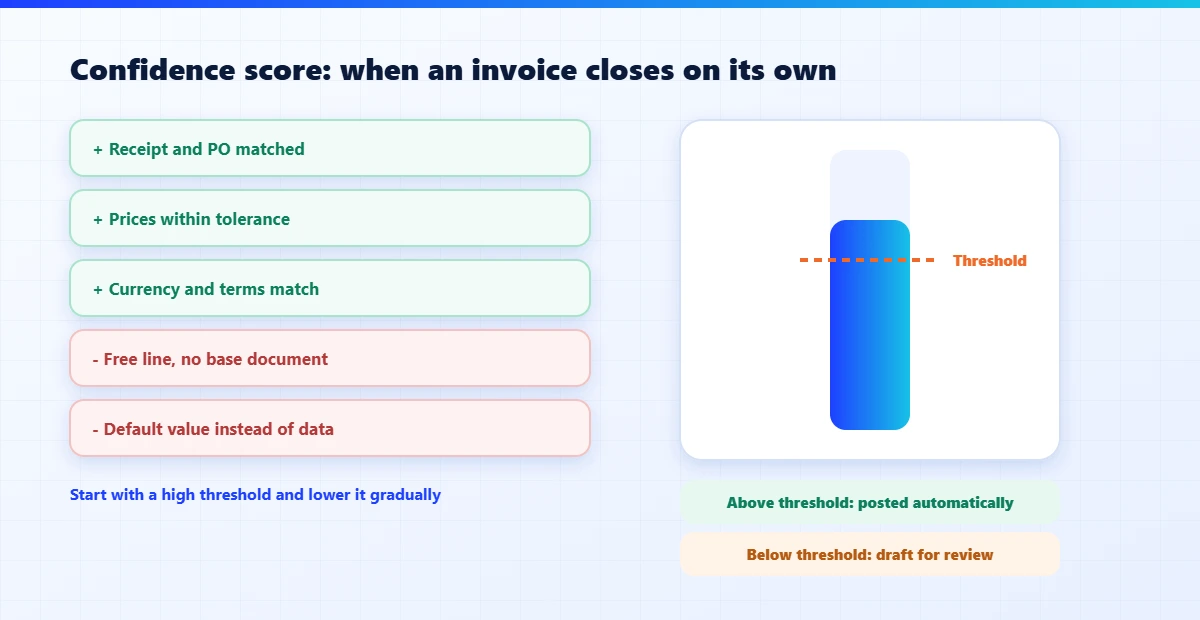
Not every invoice that passed all the checks is equally safe. An invoice matched to a receipt and a PO, with identical prices and matching currency, is safer than one built from free lines. So during matching, accumulate a score: every strong match raises it, every default value or deviation lowers it.
At the end, compare the score to a threshold the company sets: above it, the invoice is finalized automatically; below it, it stays a draft for review. Start with a high threshold (or one no invoice can reach) and lower it gradually as confidence in the results grows. That way automation grows at the pace finance is ready for.
8. Two stages, named errors, and an audit trail
Three operating principles decide whether the process holds up day to day:
- Validate before you create – as two separate stages. The first stage validates and completes the data (vendor, PO, receipt, currency). If it fails – say, the vendor wasn’t identified – the user fixes that value once in the import table and continues to the second stage, instead of the first check failing again and again.
- Create through the ERP’s standard entry. The invoice is created the way a user would key it, so every business rule, calculation and background process keeps working. Nothing is written straight into the tables.
- Every error has a code and a clear description. “Item not found in the supplier’s part numbers”, “An invoice with the same number already exists – document no. …”, “Unit of measure doesn’t match and no conversion is defined”. A clear error is fixed in a minute; a “general error” takes an hour. On top of that, every manual change is logged (who, old value, new value, when), and you count how many invoices passed without a single correction – the real measure of success.
The rules worth defining
- Arithmetic checks: every line, lines vs. header, and the header chain – with a rounding tolerance.
- A date window for invoices, and a time window for searching base documents.
- Translation tables: currencies, payment terms, supplier part numbers – and units of measure with conversion factors.
- PO search by full or partial number, together with the supplier.
- Per supplier: is a PO mandatory, is a final receipt mandatory, and what happens when a number on the page doesn’t exist.
- Tolerances per document, per line and for discounts, plus a policy for lower prices.
- A route for invoices without lines: journal entry, default item, or PO.
- A score threshold for automatic posting.
Keying convenience, or automation?
When you evaluate invoice capture solutions, ask one question before anything else: what is the system built to achieve? There are two approaches. They look alike in a demo and are very different in daily work.
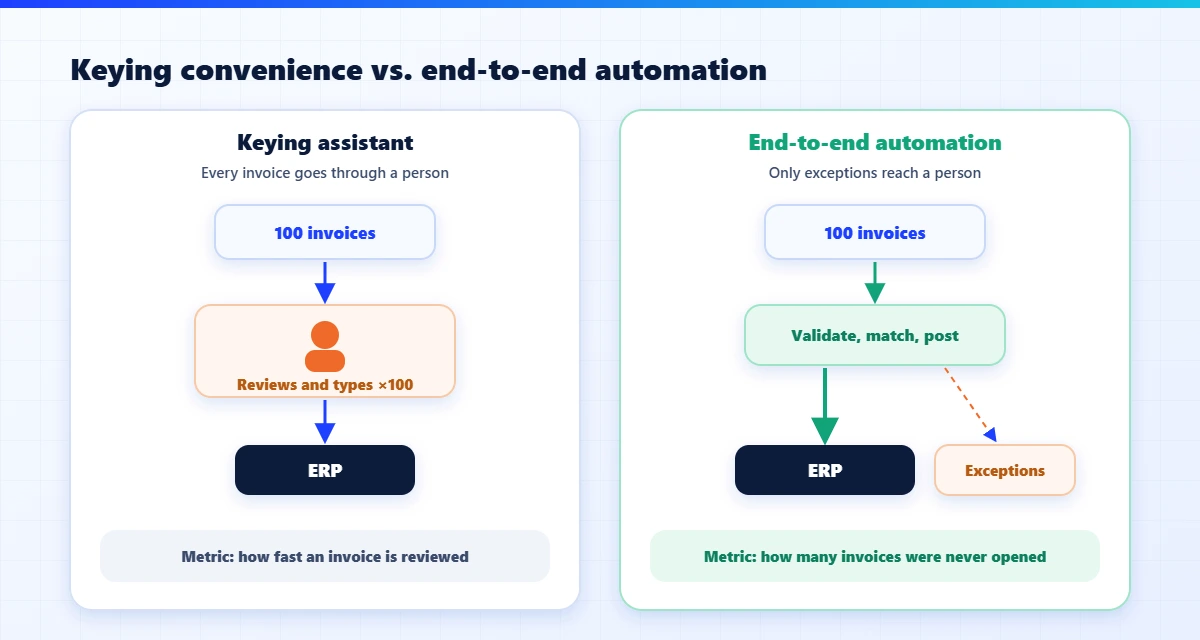
- Keying convenience. Most solutions on the market are built around the person at the screen: the invoice sits next to a pre-filled form, suspicious fields are highlighted, and there are keyboard shortcuts and a tidy work queue. It certainly helps – every invoice takes less time. But every invoice still goes through someone. The metric this approach improves is “how fast an invoice is reviewed”.
- End-to-end automation. Here the goal is that most invoices never reach anyone. The invoice is captured, read, validated, matched to the PO and the receipt, posted and closed – and a person only sees what failed the checks. The metric is different: how many invoices passed without anyone touching them.
The difference compounds quickly. With the first approach, the workload grows with the number of invoices – just at a slightly faster pace. With the second, the workload depends on the number of exceptions, so it shrinks as the rules, translation tables and vendor data improve. Every principle in this article – arithmetic checks, translation tables, matching order, tolerances and the confidence score – exists for the second approach. A keying assistant doesn’t need them, because there the person makes the decision.
How DocReader does it
SPS DocReader was built from day one for the second approach: automation that is as complete as possible, end to end – not another convenient keying screen. Its AI agents read invoices and documents in 150+ languages with 99% recognition accuracy from day one, and its ERP connection does everything described here: arithmetic checks, translation tables and unit conversion, base document search, full, partial and multiple matching, tolerances, a confidence score and automatic posting above a threshold. Settings are defined per company and per supplier, and the result is posted through the system’s standard entry.
And what doesn’t pass? It stops with an error code and a clear description, is fixed once in the import table, and continues from there. The metric we track with each customer is not how fast an invoice is reviewed, but how many invoices never had to be opened at all.
The goal is not to key faster. The goal is to have nothing left to key.
The bottom line
If your AP team still types, checks and corrects after OCR, the problem is almost never reading accuracy. It is the rules that connect the invoice to what already exists in the ERP. Once those rules are in place – arithmetic checks, translation, search, matching order, tolerances and a score – most invoices post without a touch, and people handle only what is truly an exception.
Want to see it on your own invoices? Book a short demo, send us a few sample invoices and tell us which ERP you run – we will show you them read, matched to the PO and the receipt, and posted.